
TNT SIM Registration Online 2026
Complete TNT SIM registration online through Smart’s portal. Follow the OTP, valid ID and selfie steps, check registration status, and fix common errors.
Independent TNT Registration Guide • Updated 2026
Quick and Easy Online Process in the Philippines
Complete TNT SIM registration through Smart’s registration system. This guide explains the mobile-number and OTP steps, personal details, valid ID, selfie, confirmation, status checking, and common error fixes.
Smart-Managed Portal
OTP + Valid ID

Every new TNT SIM user before normal mobile service can be activated.
An active TNT number, OTP access, accurate details, a valid ID, and a clear selfie.
Use Smart’s registration portal, supported app flow, or assisted Smart Store service.
Keep the confirmation or control number shown after a successful submission.
Quick answer: open Smart’s SIM Registration Portal, enter the TNT mobile number, verify the one-time PIN, complete the subscriber form, upload an accepted government-issued photo ID, take the requested selfie, review the declaration, and save the control number after submission.
The Philippine SIM Registration Act makes registration a condition for activating a new SIM. TNT operates under Smart Communications, so TNT subscribers use Smart’s registration and support systems. The process is free to the end-user.
How to Register a TNT SIM Online
Prepare the documents and complete the form in one session to reduce timeouts.
Open Smart’s SIM Registration Portal
Visit simreg.smart.com.ph. Check the address bar before entering personal information. Avoid registration links sent by unknown numbers, social accounts, or advertisements.
Enter the TNT Mobile Number and Verify the OTP
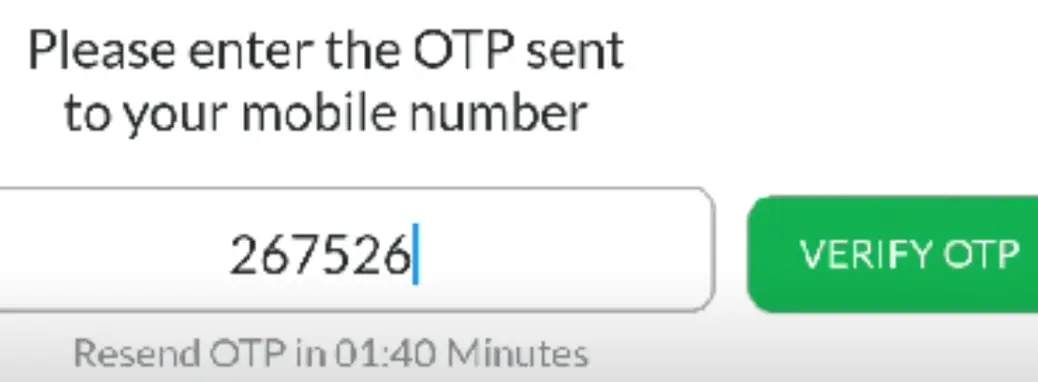
Enter the number in the format requested on the live form. Request the one-time PIN, then type it before it expires. Keep the TNT SIM in a phone with a stable signal and never disclose the OTP to another person.
Choose the Registration Type
Select the correct subscriber category, such as Filipino individual, minor through a parent or guardian, foreign national, tourist, or organization. The documents displayed by the portal will depend on this choice.
Complete the Subscriber Information
Enter the owner’s full name, date of birth, sex, nationality, and present address exactly as supported by the identity documents. Review spelling, dates, and address details before continuing.
Upload a Valid ID and Take the Selfie
Choose an accepted government-issued photo ID from the live list. Upload a sharp image with all edges and details visible, then follow the camera prompts for the selfie or liveness check. Avoid glare, shadows, filters, masks, and cropped images.
Review, Submit, and Save the Control Number
Confirm that the details and uploaded documents are correct. Read the declaration, submit the form, and keep a screenshot or written copy of the confirmation or control number. Do not publish that number online.
TNT SIM Registration Requirements and Valid IDs
Basic Registration Checklist
- An active TNT SIM that can receive the OTP
- The mobile number requested by the registration form
- Accurate subscriber name, birth date, sex, nationality, and address
- One original, unexpired government-issued photo ID accepted by the portal
- A camera-enabled phone or computer for the selfie check
- A stable internet connection
Government IDs Listed by the SIM Registration Act
- Passport
- Philippine Identification or National ID
- SSS ID or GSIS e-Card
- Driver’s License
- NBI or Police Clearance
- PRC ID
- IBP ID
- OWWA ID
- BIR ID
- Voter’s ID
- Senior Citizen Card
- UMID or PWD Card
- Another valid government-issued photo ID accepted by Smart’s live form

Other Ways to Complete TNT SIM Registration
Smart Web Portal
The browser-based portal is the direct self-service method and works on a supported phone or computer with internet and camera access.
GigaLife or Smart App Flow
If the registration option is available in the current app version, follow the prompts for the linked TNT account. You can also use the app later to check the account badge and manage load or promos.
Smart Store Assistance
Visit a Smart Store if the device is not suitable for uploads, the subscriber needs accessibility help, or repeated online attempts fail. Bring the TNT SIM and original supporting documents.
Users with a keypad or non-smartphone can keep the TNT SIM in that phone for OTP reception and complete the web form on another trusted camera-enabled device. Enter the OTP only on Smart’s verified registration page.
Requirements for Minors, Foreign Nationals, and Organizations
Registering a TNT SIM used by a minor
The SIM must be registered under the name of the minor’s parent or legal guardian. The adult provides consent, completes verification, and submits the accepted ID and any additional information requested by Smart.
Foreign tourist registration
Prepare the passport, proof of address in the Philippines, and a return or onward ticket showing the departure date and time. Under the law, a tourist-registered SIM is generally valid for 30 days unless its validity is lawfully extended through the applicable process.
Foreign resident or student registration
Prepare the passport, Philippine address evidence, and the applicable immigration, employment, residence, or school documents requested by the live registration form.
Company or organization registration
Prepare the entity’s registration certificate and the authorization document naming the representative, together with the representative’s accepted identification and the other details requested by Smart.
How to Check if a TNT SIM Is Registered
Check in GigaLife
Log in and look for the Registered or Unregistered badge beside the TNT mobile number, where the current app displays it.
Check through the Smart portal
Open the registration portal and follow the number-verification steps. Smart’s system can show a prompt when the SIM has already been registered.
Ask Smart support
If the result remains unclear, contact Smart/TNT support or visit a Smart Store with the SIM, an accepted ID, and any saved control number.
What Happens After TNT SIM Registration?
A new TNT SIM remains inactive for normal service until registration is accepted. After successful submission, keep the control number, wait for the confirmation, restart the phone, and test a call, text, and mobile-data connection.
Eligible calls, texts, data, and account features become available after registration and network activation.
Accurate subscriber records help Smart verify ownership when a SIM is lost, stolen, or replaced.
Registration supports subscriber accountability under Republic Act No. 11934.
Promo note: registration does not guarantee a permanent freebie. Welcome offers, bonus data, rewards, and promo eligibility can change. Check the current TNT promo guide and Smart’s official channels before relying on an offer.
TNT SIM Registration Problems and Solutions
Confirm the mobile number, keep the TNT SIM in a phone with signal, wait before another request, restart the phone, and avoid repeated rapid OTP attempts.
Use an unexpired accepted government ID. Retake the image in bright light with all text and document edges visible.
Use even lighting, remove hats, masks, sunglasses, and filters, clean the camera lens, and follow the live face-position prompts.
Prepare the files first, use an updated browser and stable connection, start a fresh session, or try the supported app flow.
Use the status-check methods above. If the record is unfamiliar or incorrect, contact Smart rather than submitting another person’s details.
Wait for confirmation, restart the phone, reinsert the SIM if safe, check the status, and contact Smart if calls, texts, and data remain unavailable.
Protect Your OTP, ID, and Registration Record
- Use only a verified Smart domain or supported Smart/TNT app flow.
- Never give an OTP to a caller, chat agent, social-media account, or third-party website.
- Do not post the TNT mobile number, ID image, selfie, or control number publicly.
- Report suspicious links, an unfamiliar registration record, or a lost SIM to Smart promptly.
- Smart and TNT’s official care channels state that they will not ask for your OTP or online account details.
Frequently Asked Questions
Is TNT SIM registration free?
Yes. The SIM Registration Act requires registration to be implemented at no cost to the end-user. Avoid any website or person demanding a registration fee.
Where is the official TNT SIM registration link?
TNT subscribers use Smart’s registration system at simreg.smart.com.ph. Verify the domain before entering personal information.
Can one person register more than one TNT SIM?
Yes. Complete a separate registration and OTP verification for every mobile number, using the accurate details of the person or entity responsible for each SIM.
Can a minor register a TNT SIM?
The SIM used by a minor must be registered under the name of the parent or legal guardian, who gives consent and completes the required identity verification.
How can I tell whether registration succeeded?
Keep the control number and confirmation, look for the registered badge in GigaLife where available, or verify the number through Smart’s registration portal.
Why is the registration OTP delayed?
The number may be entered incorrectly, the SIM may have weak signal, or too many requests may have been made. Check the number and signal, wait, restart the phone, and request a new OTP only when necessary.
Can I use a student ID?
Use the valid government-issued photo ID options accepted by Smart’s live portal. A foreign student may also need school registration and ID together with the immigration documents applicable to their status.
What happens if a new TNT SIM is not registered?
It cannot be activated for normal calls, texts, or mobile data. Complete registration through Smart’s system or request assistance from an official Smart support channel.
Contact Smart and TNT Support
For a registration error that cannot be resolved online, call *888 from a Smart or TNT SIM or (02) 8 888-1111 from a landline. You can also use Smart’s official contact page or visit a Smart Store.
Sources and Review Note
Last reviewed: August 10, 2026. This independent guide preserves the useful topics from the previous page while organizing them into the same practical journey users expect: start, steps, documents, alternatives, status, problems, and FAQs.
- Smart SIM Registration Portal
- Smart Help: Check SIM registration status
- Smart and TNT contact support
- Republic Act No. 11934
For a broader Smart-branded walkthrough, see the Smart SIM registration guide. The Smart page targets Smart subscribers; this page remains focused on TNT users and TNT-specific intent.